Firmware Maintenance, System Reset, and Profile Backup Guide
May 28 2026

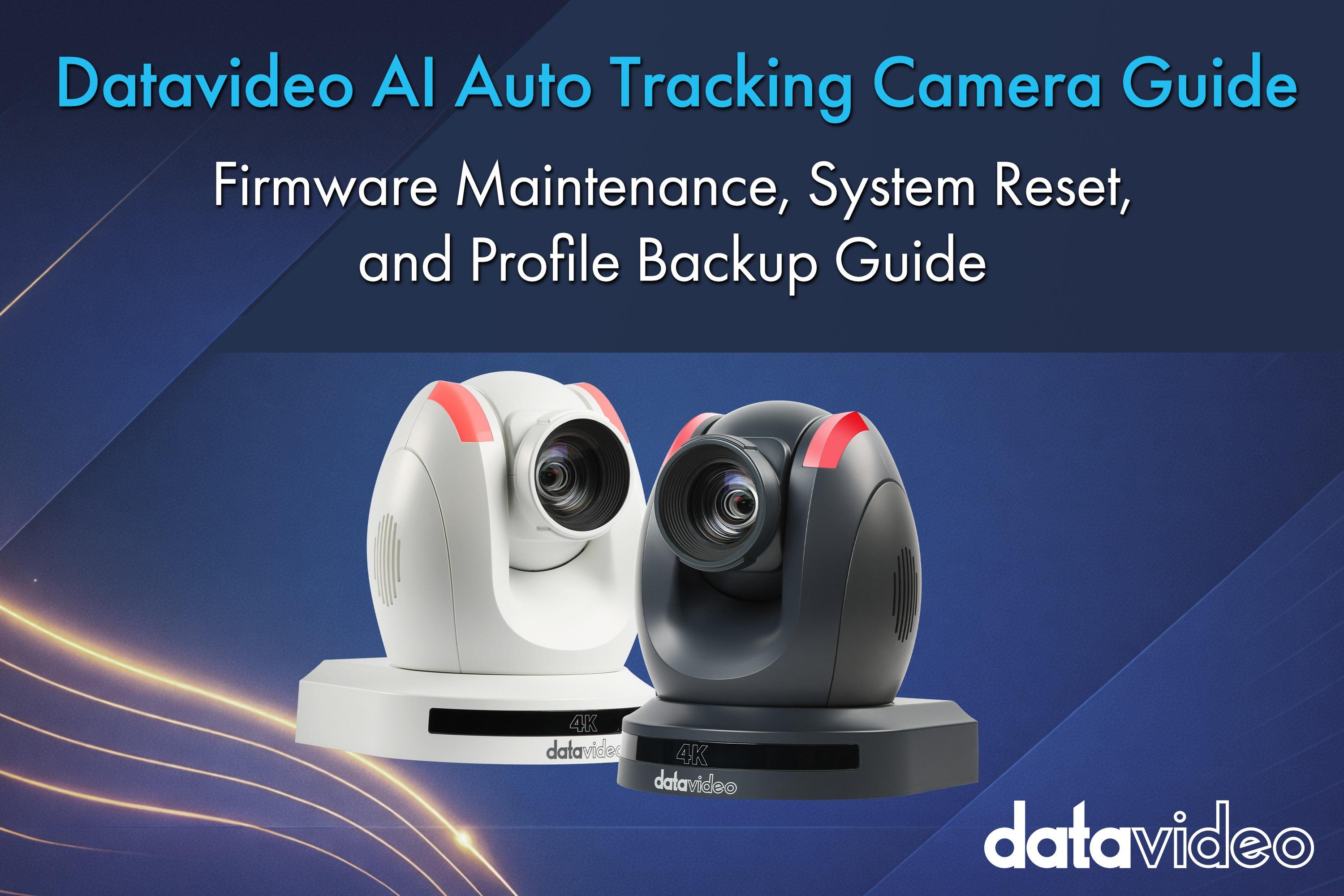
If the auto-tracking function on a Datavideo AI auto-tracking camera fails, the very first thing to check is whether Tracking Config > Tracking ON/OFF in the OSD menu — or Auto-Tracking > Track ON/OFF in the Web UI — is actually turned on.
After every firmware upgrade, perform a Factory Reset to make sure old and new parameters do not conflict.
In a live broadcast or recording environment, the AI auto-tracking camera is the kind of piece of gear you simply cannot do without. But no matter how advanced the technology gets, something always goes sideways now and then.
If your Datavideo AI auto-tracking camera (PTC-280, PTC-285, or PTC-305 series) suddenly stops tracking, do not panic. Experience says the first step is always to go back to basics. Whether you go through the OSD menu (Tracking Config > Tracking ON/OFF) or log into the Web UI (Auto-Tracking > Track ON/OFF), simply confirm whether the auto-tracking switch is actually on. Surprisingly often, that is the whole fix.
If the switch is on but the camera still misbehaves, then it is time to dig into the practical maintenance steps below.
When do you reach for an on-site reset? Usually in two situations:
An On-Site Reset is exactly what it sounds like: clearing the exposure, white balance, network settings, and PTZ positions back to a clean factory state. There are two ways to do it.
Method 1: Software Reset
Pick up the IR remote, press Menu to enter the OSD, and select Restore Default > Restore > Yes > Yes.
This is the right tool when someone else has been fiddling with the camera and parameters are now off — wrong colors, tracking sensitivity set too high, that kind of thing. The upside is that it normally does not wipe your network IP, which saves you a network reconfiguration step.
Method 2: Factory Reset
This is the heavier option. Use a computer to log into the camera's Web UI, then under the System tab click Factory Default.
After you click reset, the PTZ mechanism will run a self-test: rotating to its mechanical limits and then returning to the center. It is essentially a complete mechanical zero-out calibration, and it solves a surprising number of small positional glitches.
Firmware is the camera's brain. It runs the hardware and the AI tracking algorithm. When Datavideo releases new firmware, it usually means known bugs have been fixed, AI tracking accuracy has been improved, and sometimes new features (like FreeD protocol support) are added.
Preparation before upgrading:
Upgrade steps: Log into the Web UI with the default account (usually admin / admin). Go to System > Firmware, upload the .img, .mrg, or .bin file you just downloaded, and click update.
The single most important rule during the upgrade: do not cut power. Keep the camera powered until it finishes upgrading and reboots itself. If you lose power in the middle, the firmware may corrupt and the camera will need a trip back to the manufacturer.
What to do right after upgrading: After the upgrade completes, perform a Factory Default one more time. This ensures that any leftover parameters from the old firmware do not collide with the new firmware.
One reminder: after the reset, a camera that was previously on a Static IP will revert to the default 192.168.100.100. If your system needs a static IP, you'll need to manually set it back to whatever address you were using.
Once hardware and firmware are good to go, the thing that actually makes AI auto-tracking useful is on-site calibration. Every event has a different speaker, a different height, a different walking range. Whenever you arrive at a new venue, you must re-calibrate.
Step 1: Set the Home position and your Presets
Use the IR remote or the RMC-300A controller to save your shooting angles into Presets (the range is 0 to 255). The AI tracking "start position" is usually Preset 0 or Preset 1 — make sure to save the center of the stage as the Home position first.
Step 2: Set "Figure Size" in the Web UI's Auto-Tracking tab
Choose Full Body, Half Body, or Close Up depending on the scene. If the speaker has a whiteboard or projection screen next to them, use the Placement setting to offset the subject to the left or right so they don't always block the content.
Step 3: Don't forget Headroom
If there is too little headroom, the moment the speaker moves, the camera will "cut off the head" and the framing will look amateurish.
Step 4: Get the Sensitivity right
If today's subject is going to run around the venue or move quickly, increase Pan/Tilt speed. If the subject's movements are slower and more deliberate (a pastor, a keynote speaker), lower the tracking speed for smoother, more cinematic footage.
The last and most important step: ask a real person to walk on stage as a live test. Confirm that the green or red tracking box is consistently locked onto the target. Once that passes, calibration is complete.
| Item | Purpose | Datavideo Key Operation | Notes |
|---|---|---|---|
| On-Site Reset | Clear anomalies; mechanical zero-out | OSD: Menu > Restore Default > Restore Web UI: System > Factory Default |
Will clear all Presets. They will need to be reconfigured. |
| Firmware Upgrade | Fix bugs; improve the AI algorithm | Upload .img / .mrg / .bin firmware file in the Web UI | Always execute a Factory Reset once the upgrade is complete. |
| Set Presets | Save common shooting angles | Use the IR remote or RMC-300A controller to save angles into Preset 0–255. | The AI tracking "start position" is usually Preset 0 or Preset 1. |
| AI Calibration | Ensure perfect framing | Web UI > Auto Tracking — set Figure Size, Placement, Headroom, Sensitivity | Adjust Headroom and Figure Size to fit the speaker's height and movement range. |
Document No. DV-AI-01 — Print and pin next to the control desk for on-site use.
A. Maintenance Workflow: (1) Assess — firmware upgrade or troubleshooting? → (2) Execute — upgrade firmware or run reset → (3) Force zero-out: Factory Reset → (4) AI Calibration: set the tracking frame → (5) Finalize
B. Execution Checklist:
1. Preparation (Pre-Check)
2. Core Maintenance (Execution)
3. AI Calibration
4. Finalize
Broadcast & AV Workflow Specialists
For more than 40 years, Datavideo has helped broadcasters, educators, corporations, houses of worship, and live production professionals build reliable video workflows around the world.
The Datavideo Editorial Team combines insights from our product specialists, engineers, trainers, and solution experts to share practical knowledge, workflow guides, industry trends, and real-world production tips.