Tracking Parameter Suggestions for Classrooms, Churches, and Conference Rooms
May 28 2026

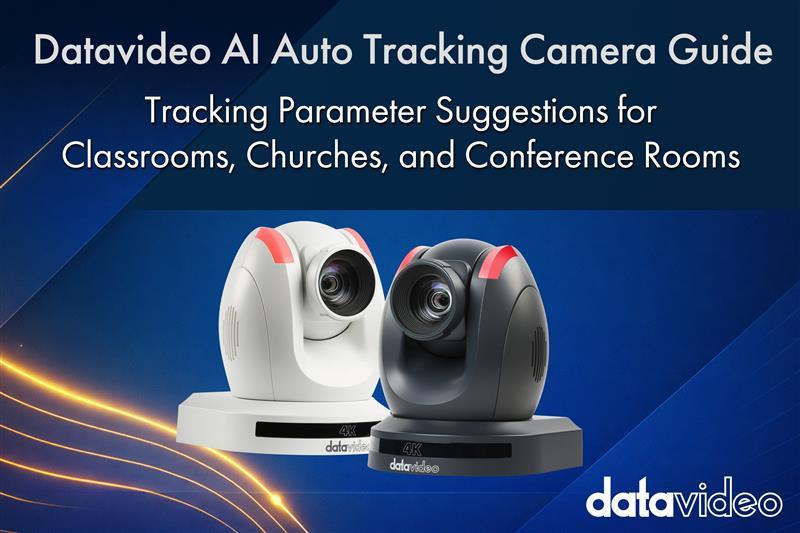
Classroom: Half Body framing / Subject placement Left or Right (so the speaker doesn't block the board) / Headroom set to High / Tracking Speed medium to fast.
Church and Worship: Half Body or Close-up / Subject placement Center / Tracking Speed Slow, to keep the visuals calm and reverent.
Conference Room: Close-up / Subject placement Center / Tracking Speed Fast, so remote attendees can read the speaker's expression.
Dialing in an AI auto-tracking camera is not something you can do with factory presets alone. Every venue, and every speaker, behaves differently. You need to tune the camera to match how people move and how the space is shaped.
Take a Datavideo AI auto-tracking camera as an example. The three settings you will touch most often are Figure Size, Placement, and AT Speed (tracking speed). Get these three right for the scene, and the footage will feel natural and professional. Get them wrong, and the audience will notice the jitter immediately.
Below are recommended parameter combinations for the three most common scenarios — classroom, church, and conference room — along with the reasoning behind each choice.
In a classroom, the subject is not just the teacher — it is also the blackboard, whiteboard, or projection screen behind them. If you only frame the person, you lose the message.
Set Figure Size to Half Body. If you want a bit more room to show expression and hand gestures, the Figure Size slider in the Web UI lets you go slightly wider than half body.
The most important technique: do not center the subject. Set Placement to Left or Right. That way the teacher does not block the blackboard or projection screen behind them — the key information stays visible.
Teachers often write near the top of the board, so head into the Web UI and set Headroom to High. This prevents the camera from cropping the top line of text out of frame.
For Tracking Speed, set Medium or Fast. Teachers move around constantly during class.
One detail that often gets missed: turn Auto Zoom On. When the teacher steps off the podium or walks down to the students, the shot widens automatically so you don't end up with a head cropped in half.
The cinematography logic for a church service is the opposite of a classroom. A classroom delivers information; a worship service delivers emotion and faith. The footage needs to feel calm, reverent, and unhurried.
Set Placement to Center, so the image has visual balance. Figure Size can be Half Body or Close-up, focusing the audience on the expression and emotion of the pastor or speaker.
The single most important setting: Tracking Speed should be Slow (or Soft).
Pastors often make small, restrained movements at the lectern. If the tracking speed is too high, the camera will follow every twitch and the frame becomes nervous and jittery. A slow tracking speed keeps the image still, and the visual atmosphere of the service stays solemn.
Video conferencing is a different beast. In Zoom or Teams, each participant occupies a small tile on screen. If you frame a full or half body, the speaker's face becomes tiny and remote attendees lose the expression entirely.
Set Figure Size to Close-up, and Placement to Center. This creates the sense of "we are looking at each other" — that all-important eye-contact feel for hybrid meetings.
Meetings tend to move quickly: people interrupt, walk to the whiteboard, point at slides. Set Tracking Speed to Fast so the camera keeps up.
Two practical tips you should not skip:
Tuned this way, a Datavideo AI auto-tracking camera (for example, the PTC-155 series) will deliver an image that matches the atmosphere of each room without any manual intervention.
| Parameter | Classroom (Education) | Church (Worship) | Conference Room |
|---|---|---|---|
| Figure Size | Half Body | Half Body | Close-up |
| Placement | Left / Right | Center | Center |
| Tracking Speed (AT Speed) | Medium / Fast | Slow / Soft | Fast |
| Headroom | High — leave space for the board | Default | Default |
| Auto Zoom | On | Depends (usually On) | Off — avoid excessive zooming |
There is no universal preset for an AI auto-tracking camera. The right combination of Figure Size, Placement, and AT Speed for any scene comes from a simple question: what are the people in this room actually doing, and what does the audience need to see?
Classrooms need the content to shine. Worship services need the emotion to shine. Conference rooms need eye contact to shine. Keep that in mind as you tune, and the right settings tend to fall into place quickly.
We hope this reference helps you land on the right combination quickly in every venue, so the AI auto-tracking camera actually earns its keep.
Broadcast & AV Workflow Specialists
For more than 40 years, Datavideo has helped broadcasters, educators, corporations, houses of worship, and live production professionals build reliable video workflows around the world.
The Datavideo Editorial Team combines insights from our product specialists, engineers, trainers, and solution experts to share practical knowledge, workflow guides, industry trends, and real-world production tips.