Integrating Datavideo NDI PTZ Cameras into vMix and OBS Production Software
Oct 08 2026

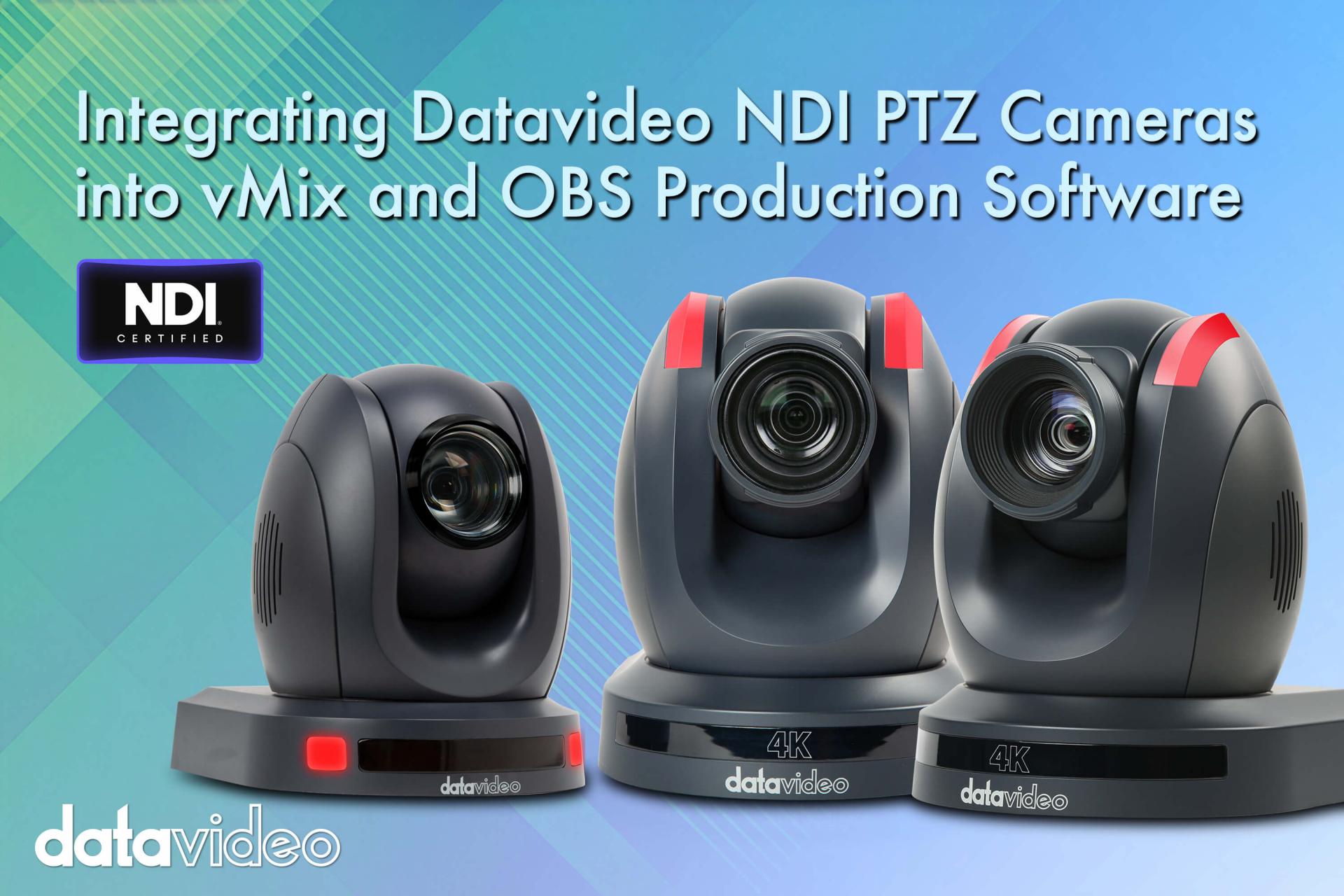 Datavideo NDI PTZ cameras output a standard NDI signal, which means they can be read directly by mainstream production software without a proprietary capture card. The two most widely used options are the commercial software vMix and the free, open-source OBS Studio. This article explains how to bring Datavideo NDI cameras into each of these applications and how to choose between them.
vMix natively supports both sending and receiving NDI, delivering high-quality, low-latency AV transmission over a standard Gigabit network. To add a Datavideo PTC series camera to vMix, the basic workflow is: confirm the camera and the vMix computer are on the same network, open vMix and add a new input source, select the NDI category — vMix will list all NDI sources detected on the network — then select the corresponding camera to add it as an input. From that point, it can be switched, composited, and treated like any other video input.
Beyond receiving, vMix can also output the program, preview, multiview, or even individual input sources back out over NDI, making them available to monitoring devices or downstream systems on the network. This is highly useful when the switched program needs to reach multiple monitoring points simultaneously.
OBS Studio does not have built-in NDI support and requires the free OBS-NDI plug-in (now renamed DistroAV). Once installed, the plug-in adds three functions to OBS: NDI Source (add any NDI source on the network as a regular scene source), NDI Output (send the main OBS program output out over NDI), and NDI Filter (output any individual source or scene as a separate NDI stream).
Before installation, confirm: the OBS Studio version meets the plug-in's requirements (a recent version is recommended), the NDI Runtime (the official NDI execution environment component, not bundled with the plug-in) is also installed, and the computer and cameras are on the same network. Once configured, clicking Add Source in OBS and selecting NDI Source will list all detected Datavideo NDI cameras on the network. Select one to add it to the scene — it then behaves like any other video source.
If the site already has a vMix license, or requires commercial-grade technical support and reliability, vMix is the simpler path. For educational institutions, clubs, or teams just beginning to evaluate NDI systems on limited budgets, testing the full workflow with OBS and the DistroAV plug-in is a perfectly reasonable approach — both applications successfully read Datavideo PTC series camera NDI signals.
Whether using the commercial vMix or the free OBS Studio, Datavideo NDI PTZ cameras can be discovered and added over the network without a capture card or converter. The choice between them comes down to budget and requirements for stability and technical support. For guidance on the camera-to-network planning side, see the "NDI Bandwidth Planning Guide," or return to "The Ultimate Guide to NDI Production Workflows."